Pick exact colors from any image
Upload, paste or drop a photo, then tap any pixel to capture its exact color. Copy the format you need, collect a useful palette or continue the selected color in Chromo.
- Processed in your browser
- Free to use
- Mouse and touch ready
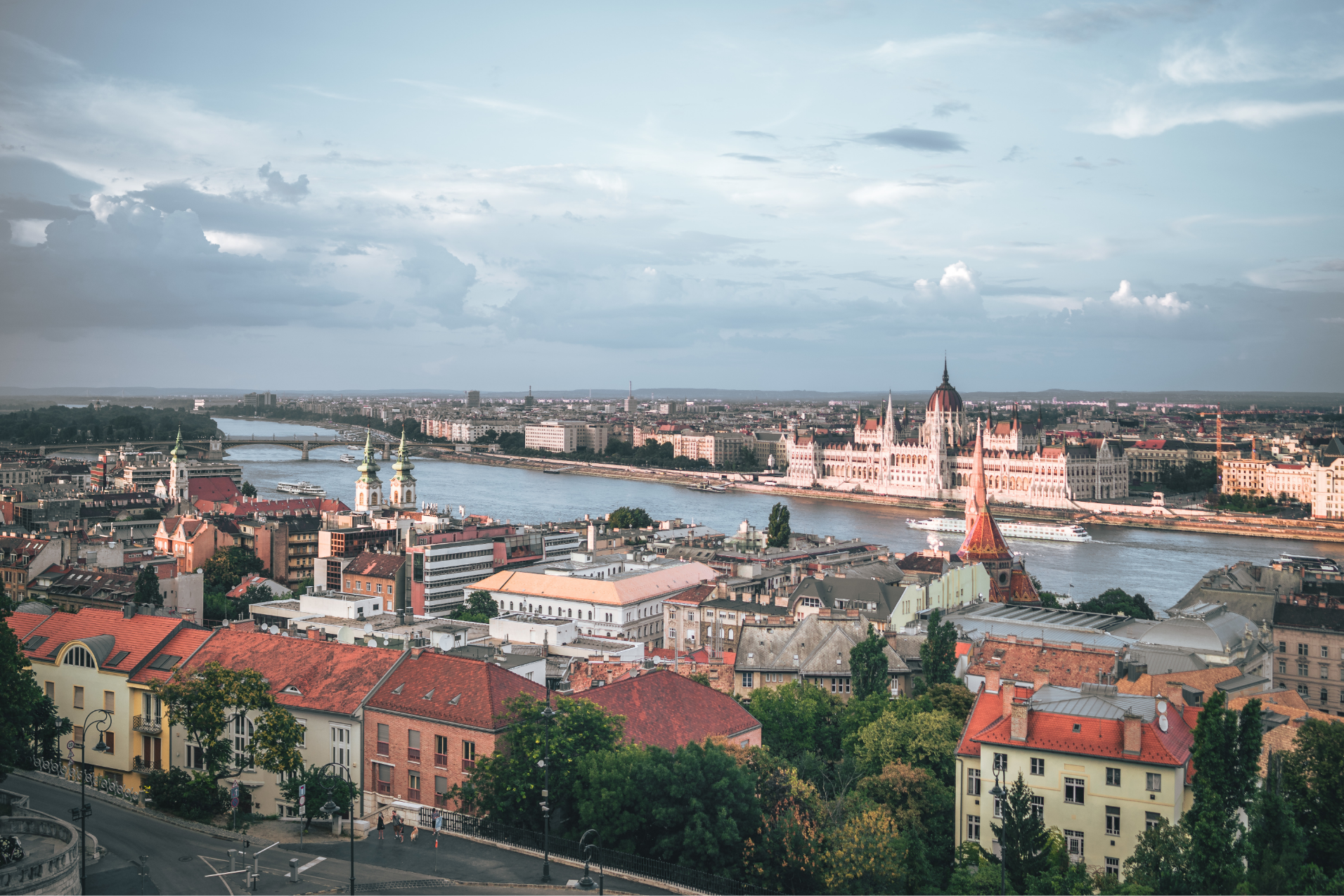
ReadyTools sample image
JPEG, PNG, WebP, GIF or AVIF up to 20 MB

Move over the image for a magnified view, then click the exact pixel you need.Tap the exact area you want to sample. The magnifier appears briefly after each tap.
Magnifier zoom
6×
Active color
Pick a point on the image to see its color values.
Picked colors
Your latest unique samples
Your selected colors will appear here.
Dominant colors
A balanced palette detected automatically from the image
Colors will appear after the image is processed.
Use this palette
Continue your color workflow
Turn the colors you found into a reusable palette
Send your picked or dominant colors directly to the palette builder, refine the order and create a consistent set for a website, brand, presentation or social post.
Understand the selected color
Take this color further with Chromo
Open the selected color in Chromo to inspect its identity, values, visual relationships and practical color information in one focused view.
Precise, practical and browser-based
A fast image color picker for design, branding and everyday creative work
ReadyTools helps you identify an exact color from a photo, screenshot, illustration, product image or interface. Instead of guessing a HEX code, you can sample the real pixel, inspect multiple color formats and collect the strongest colors into a useful palette. The interface works on desktop, tablet and phone, so the same workflow stays simple wherever you are working.
Exact pixel sampling
A configurable magnifier makes small details easier to target, while click and touch support keeps the picker accurate on every screen size.
Smarter dominant colors
The image is sampled efficiently and similar colors are filtered so the automatic palette contains more useful visual variety.
Ready-to-use color values
Copy HEX, RGB, HSL, CMYK and CSS values individually, export the palette as CSS or JSON, or continue deeper color analysis in Chromo.
Why use this image color picker?
A good color picker from image should do more than display a pixel. It should help you move from visual inspiration to usable color values without slowing down your workflow.
Pick the actual pixel, not an estimate
The magnified picker targets the exact area you choose, so you can recover a specific color from small interface details, photographs, logos or illustrations.
Get useful values immediately
HEX, RGB, HSL, CMYK and CSS appear together, making it easy to move the same color into design tools, websites, documents or print planning.
Move from one color to a complete palette
Automatic dominant colors and your own sampled colors can be collected, copied as code or sent directly to the ReadyTools palette builder.
Designed for desktop and mobile
Mouse, touch, drag and paste workflows are supported in a responsive interface that remains practical on phones, tablets and larger screens.
How to pick a color from an image
Extracting a color from an image takes only three steps. No account, installation or complicated design software is required.
Add your image
Choose a supported file, drag it onto the page or paste it directly from your clipboard.
Tap the exact pixel
Use the magnifier to target a detail, then click or tap to save that color in your history.
Copy or build a palette
Copy the format your project needs, export the detected palette or open the selected color in Chromo for deeper analysis.
Useful for more than graphic design
The same image-to-color workflow can remove guesswork from many practical tasks.
Brand matching
Recover colors from an existing logo, campaign image or brand asset.
UI and web design
Translate a reference image into reusable CSS colors for a new interface.
Photography and content
Find tones that work with a photo before creating text, frames or social graphics.
Color review
Inspect real color values before checking contrast or adjusting a visual system.
Product and material matching
Sample packaging, clothing, furniture or materials when you need a close digital reference for a real-world color.
Social and marketing content
Create text, backgrounds and campaign graphics that visually belong with the photo or artwork you are using.
Which color format should you copy?
The same color can be represented in several ways. Choose the format that best matches the tool, platform or production workflow you are using.
Best for websites and design handoff
A compact hexadecimal value commonly used in CSS, design systems, website builders and brand guidelines.
Best for screens and digital graphics
Describes the red, green and blue light values used by displays, image editors and many digital applications.
Best for intuitive color adjustments
Separates hue, saturation and lightness, which makes a color easier to understand and adjust systematically.
Useful when planning for print
Shows an approximate cyan, magenta, yellow and black breakdown. Final print output can still depend on the printer and color profile.
Ready to paste into a stylesheet
Copies a complete background-color declaration so the selected image color can be tested in a web project immediately.
From a single pixel to a usable color system
The picker preserves the exact sampled value while the dominant-color analysis groups nearby tones to create a cleaner palette. Use the exact pixel when precision matters, then use the palette and Chromo when you need broader creative context.
Tips for more reliable color extraction
A few small choices can make the result easier to trust and more useful in the next stage of your project.
01
Use the original image when possible
Compressed screenshots and social-media downloads may slightly change colors. A higher-quality source usually gives a more faithful pixel value.
02
Zoom into flat color areas
Avoid edges, reflections and shadows when you need a base color. Sample a visually even area and compare a few nearby pixels.
03
Check more than one format
HEX is convenient for the web, while HSL is often easier to adjust and CMYK can provide an initial reference for print work.
04
Build a palette before designing
Collect the strongest colors first, then decide which one will lead, support or accent the final interface, graphic or campaign.
Your image stays in the browser
Color analysis is performed locally in your browser. The tool applies file type, file size and pixel limits to keep processing stable, and uploaded object URLs are released when they are no longer needed. This makes the workflow faster and reduces unnecessary image handling.
Frequently asked questions
Answers to common questions about extracting HEX codes, dominant colors and palettes from photos, screenshots and other images.
How do I find the HEX color in an image?
Upload or paste the image, then click or tap the pixel you want. The active color panel immediately shows the HEX value and lets you copy it.
Can I use the image color picker on a phone?
Yes. The layout is responsive and touch input is supported. Tap an area of the image to sample it and use the brief magnified preview for better accuracy.
Which image formats are supported?
The picker accepts JPEG, PNG, WebP, GIF and AVIF images up to 20 MB, with additional pixel limits for stable browser processing.
Can I extract a complete color palette from a photo?
Yes. The tool automatically finds a balanced set of dominant colors. You can also collect your own samples and send either set to the palette builder.
Is this image color picker free?
Yes. You can upload an image, sample colors, copy color formats and detect a palette without paying or installing software.
Why can the same object look like several different colors?
Lighting, shadows, reflections, compression and screen calibration can change individual pixels. Sample several nearby areas and choose the value that best represents the surface you need.